
How to buy on Sugargoo
Follow a Weidian product from the Sugargoo Finds List to warehouse inspection and delivery. Open each step to see the instructions and screenshots.
Register on Sugargoo
You can browse this directory and use its search tools as a guest. Use a Sugargoo account when managing orders and parcels. Review any coupon’s expiry, minimum spend, and eligibility in your account before including it in your budget.
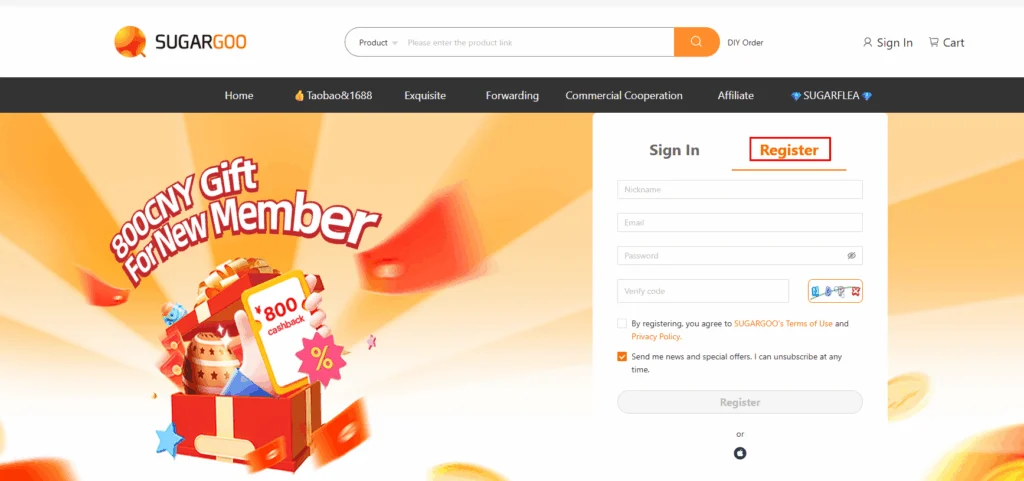
Open Sugargoo registration Find a product in the Sugargoo spreadsheet
Search the product name or Weidian item ID from the homepage. If you have a photo, select the image icon to open Image search and upload it there. Open the best match and check the item ID against the original listing.
Try item 7405460467 as a practice search. Compare the seller’s gallery, the category and the USD reference price before opening a buying link.
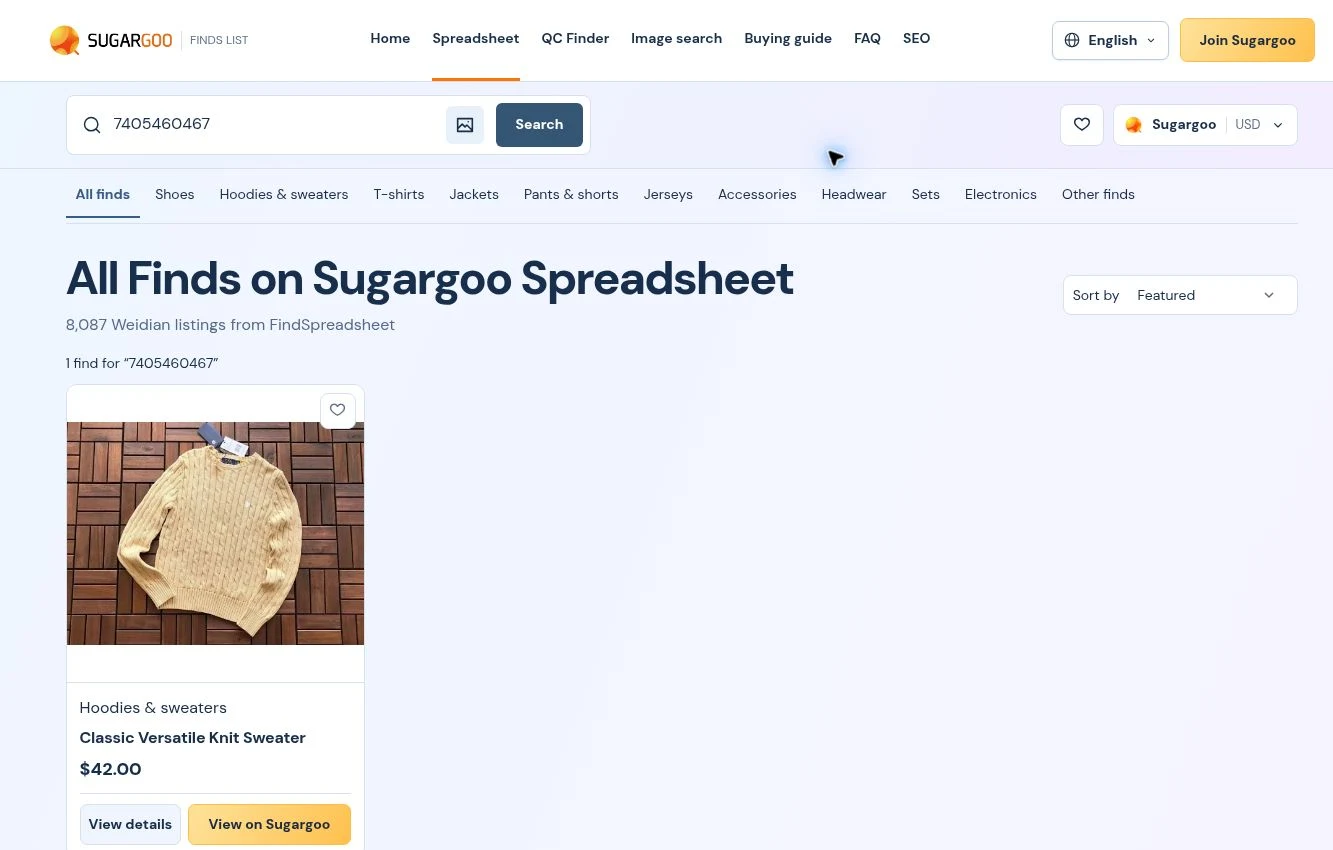
Sugargoo Finds List example showing a search by Weidian item ID. Check available reference QC photos
On the item page, open QC Finder or paste the Weidian ID or supported item link into the tool. Look for a matching variant and readable details such as labels, pattern, shape and stitching.
Historical warehouse photos may come from another agent. When none are available, the reference section displays the seller’s gallery. For a real warehouse photo example, try item 7405460467.
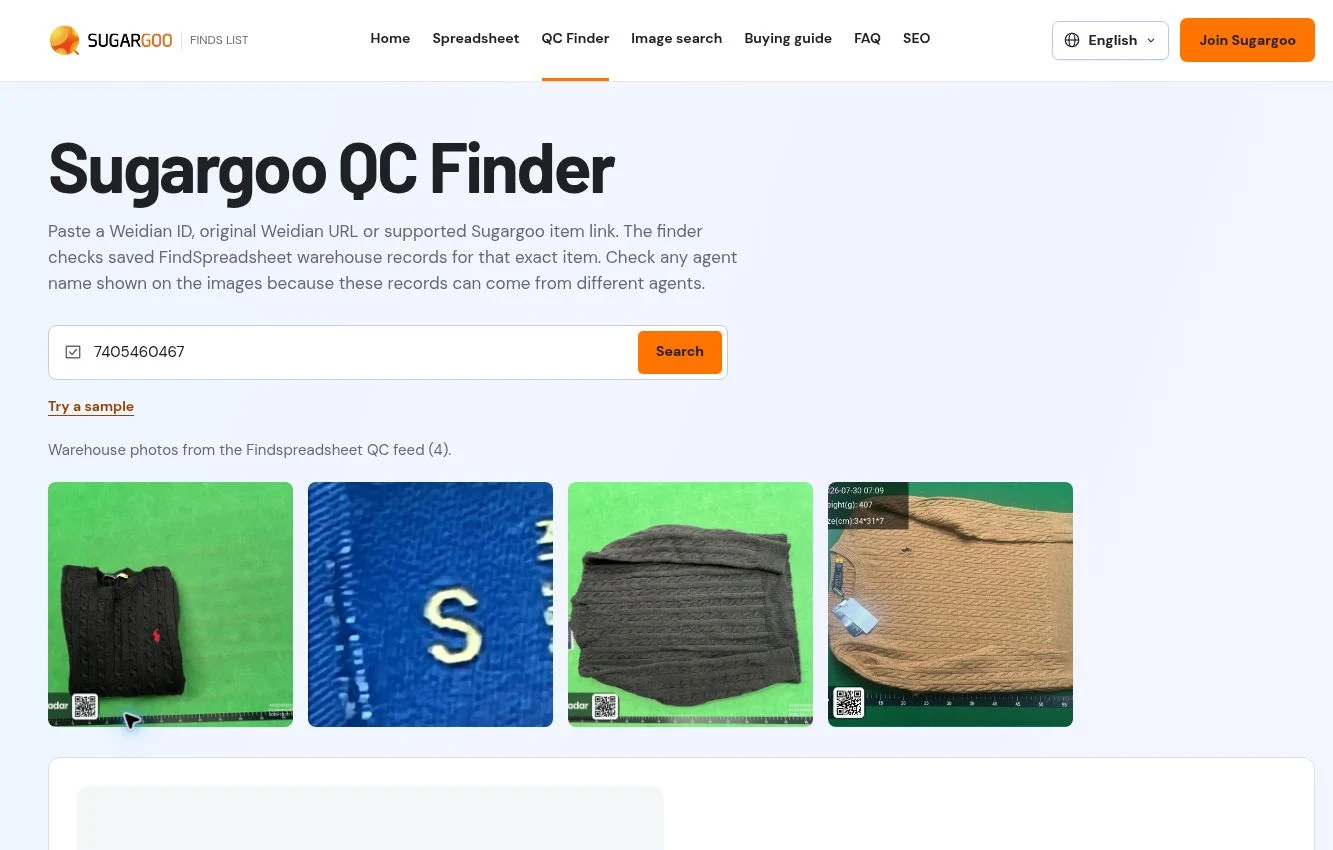
Sugargoo Finds List QC Finder showing saved warehouse photos for item 7405460467. Open Sugargoo and choose the exact variant
Select Buy on Sugargoo to open the same Weidian item on the agent’s site. Check the seller’s size chart, choose the color, size, version and quantity, then use the cart or the purchase button.
If the listing does not import, verify the original link before using Sugargoo’s manual purchase form. Enter the original URL and exact options so the buyer can identify the right item.
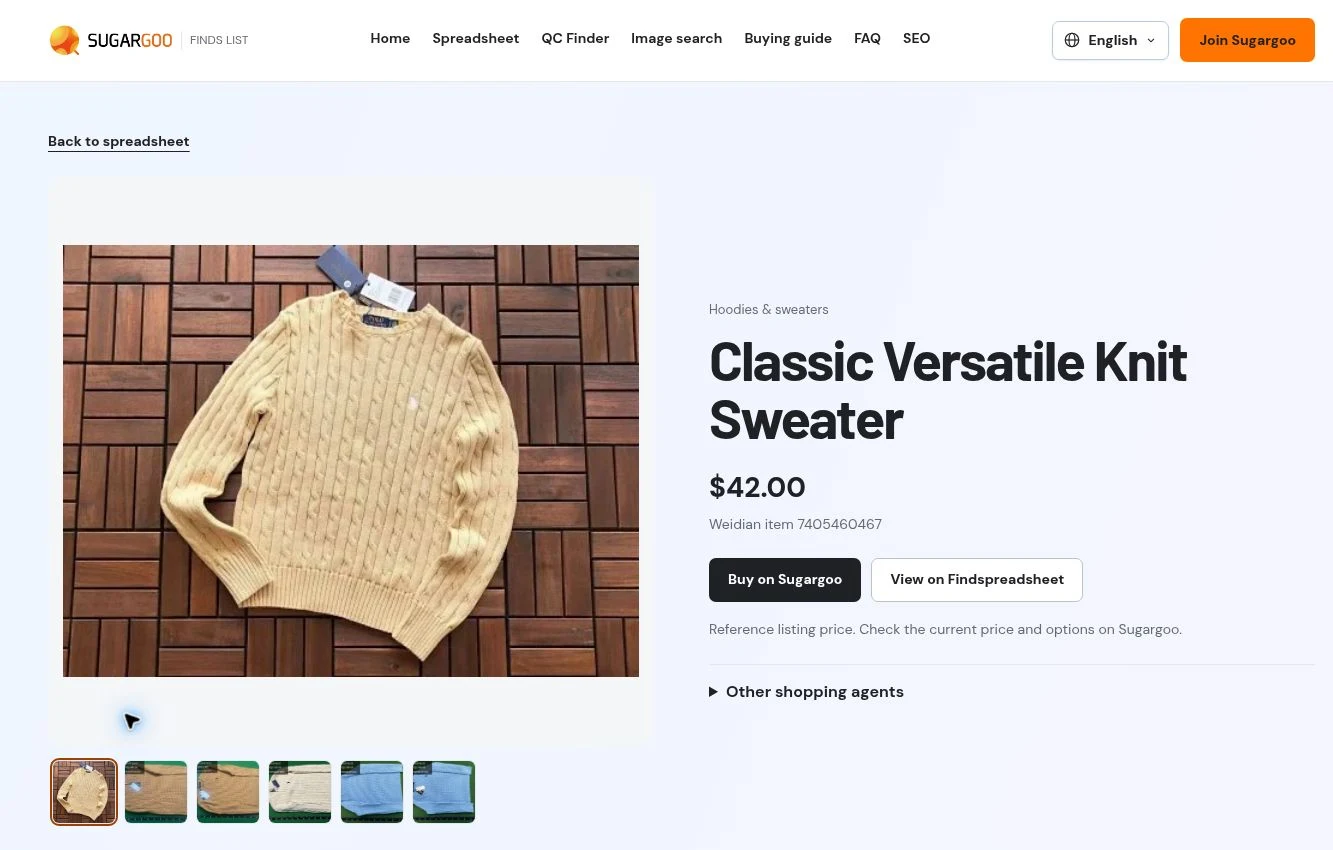
Sugargoo Finds List product detail showing the purchase link for the selected Weidian item. 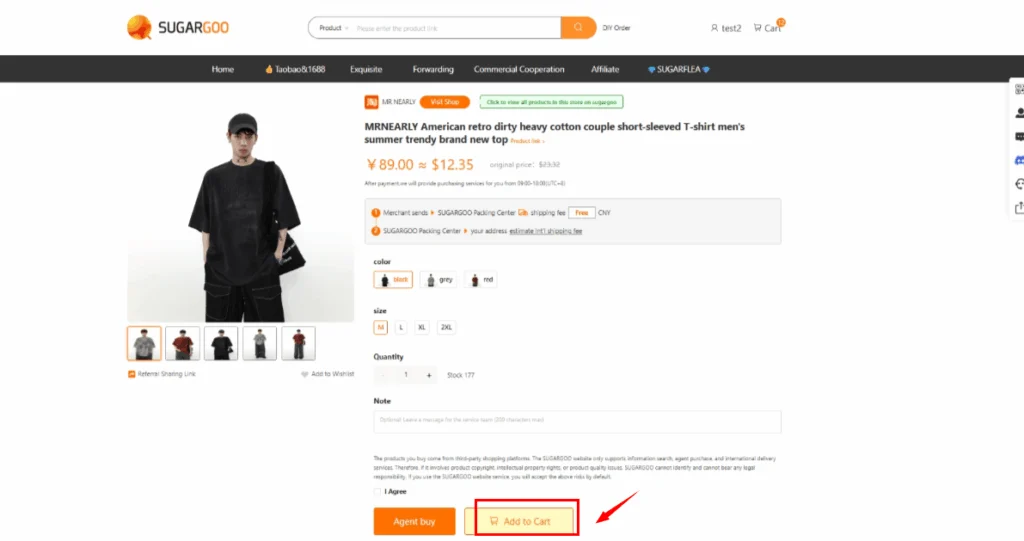
Sugargoo’s public tutorial shows how to review options and quantity before checkout. Review the item order and domestic delivery
Review the item price, quantity, and seller delivery to the warehouse in China before paying. The product price shown in this spreadsheet is a USD estimate. The amount shown by Sugargoo applies to your order.
After payment, Sugargoo processes the purchase and the seller dispatches the item to its warehouse. Check the order record for updates and respond if the buyer needs more information about the listing or variant.
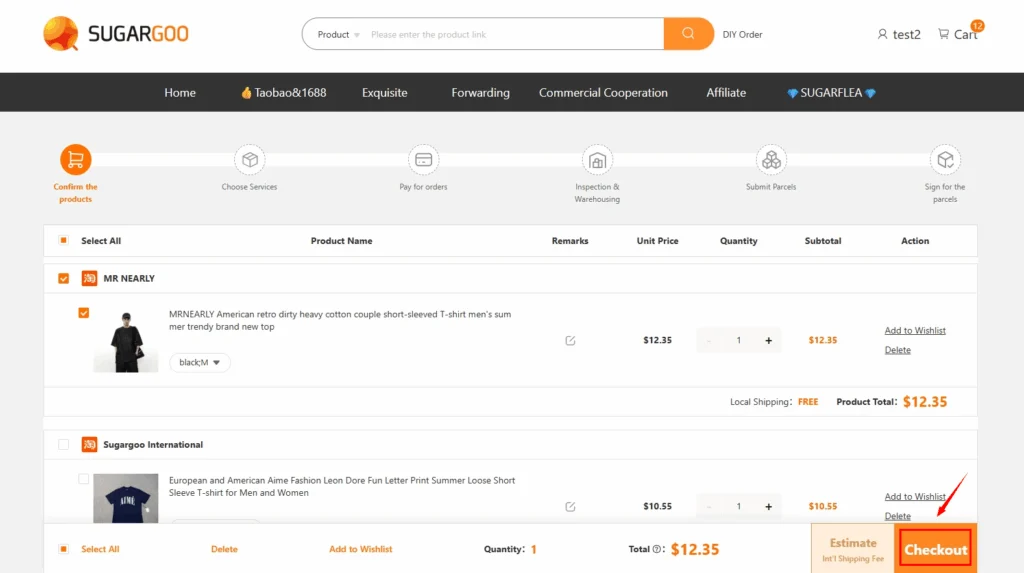
Sugargoo’s public tutorial shows how to review options and quantity before checkout. Inspect your own warehouse QC pictures
After the seller’s delivery reaches Sugargoo, open the warehouse record for the item. Check the option, quantity, size tag, and visible condition of the goods against your order. Ask about additional photos if you need to read a label or see a detail more clearly.
If something appears wrong, contact Sugargoo from the relevant order or warehouse record while the goods are still in storage. Check the order’s current after-sales options and deadline.
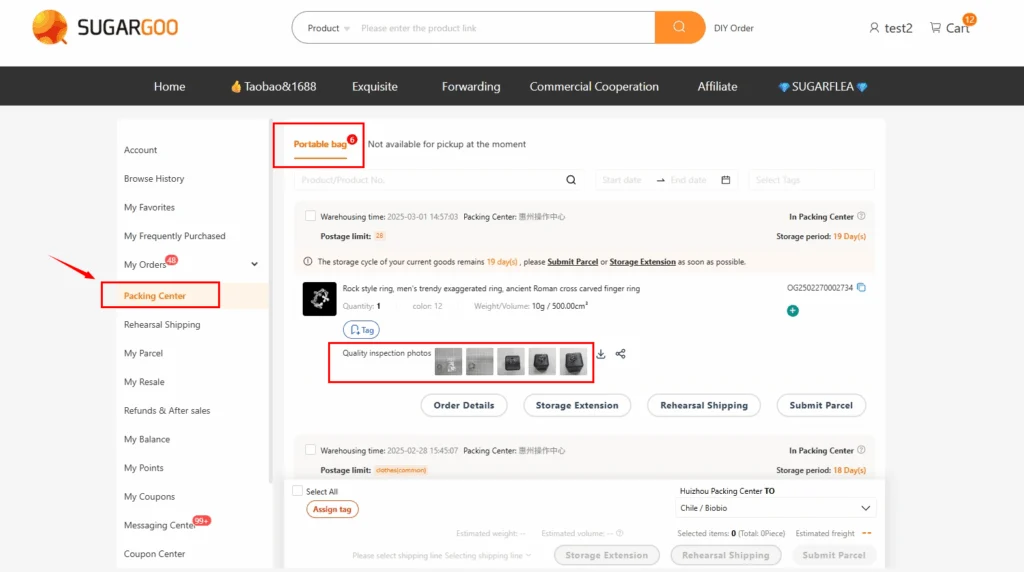
Sugargoo’s public tutorial illustrates warehouse intake, inspection and packing. Submit a parcel and compare international routes
Select the stored items you want to ship together. Confirm the recipient details, check any route restrictions, and compare packing options and international shipping costs before paying for the parcel.
Use the official shipping estimator to plan around the destination, packed weight and dimensions. Check the final cost and available routes on the actual parcel screen.
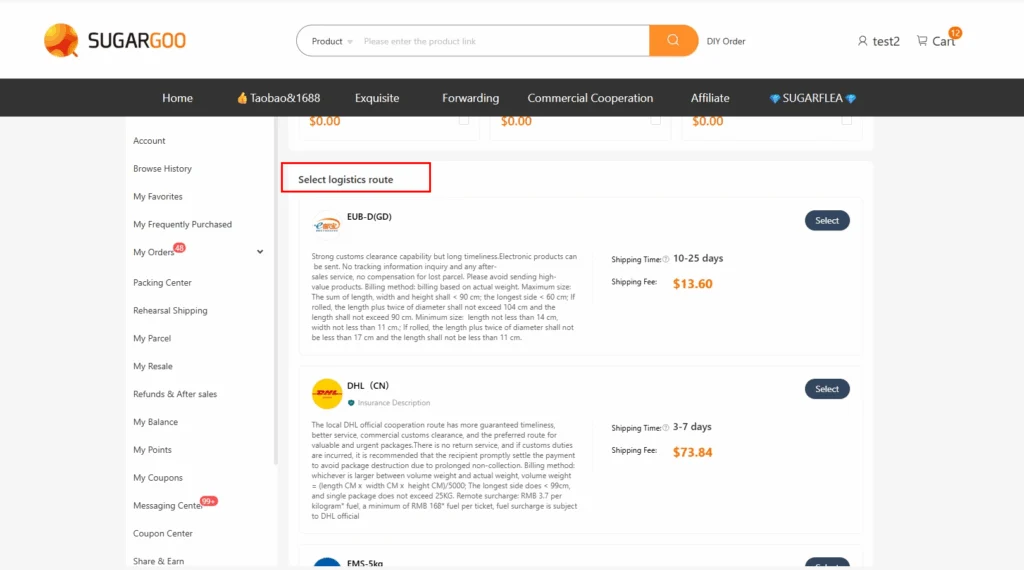
Sugargoo’s public tutorial shows the international parcel checkout. 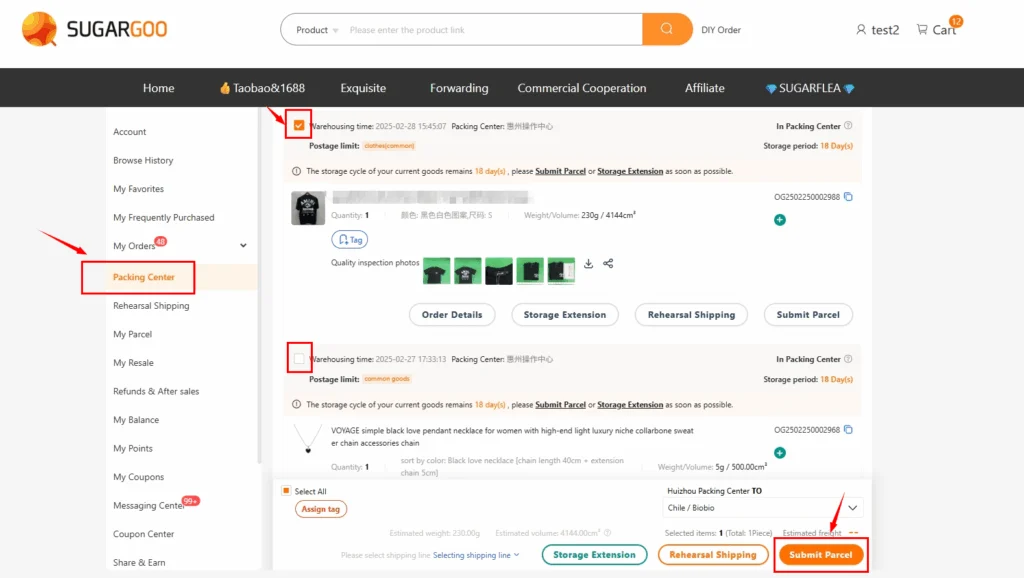
Submit a parcel and compare international routes Track the parcel and confirm receipt
After dispatch, open the parcel record in your Sugargoo account for the carrier and tracking number. When the parcel arrives, check the contents and packaging before confirming receipt.
If anything is missing or damaged, keep the label and photographs and contact Sugargoo with the parcel number and the details of the problem.